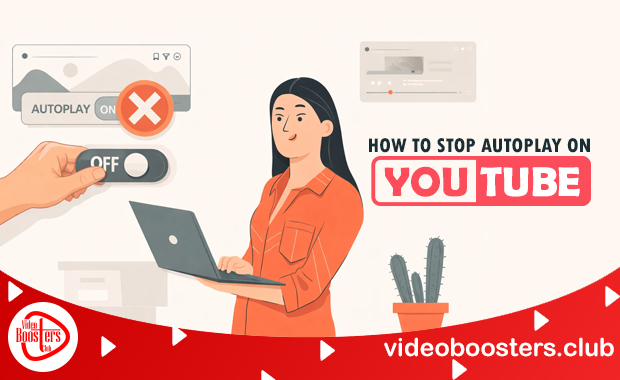
You open YouTube with a simple intention. Maybe you want to watch a short tutorial, listen to a song, or check one video recommended by a friend. A few minutes later, the video ends—and before you even realize it, another one starts playing. This experience is so common that many users actively search for how to stop autoplay on YouTube because it feels like the platform quietly takes control of their time.
What was meant to be a quick visit often turns into an unplanned viewing session. Autoplay isn’t always a bad feature. In fact, it can be useful in certain situations. But when it starts deciding what you watch next without asking, it can quickly become frustrating.
The good news is that autoplay is not mandatory. YouTube gives users the option to disable it, though the steps and behavior vary depending on the device you’re using. In this guide, we’ll break everything down in a clear, calm, and practical way—without technical confusion or repetitive advice.
Understanding Autoplay on YouTube
Understanding how to stop autoplay on YouTube helps you take control of what you watch and avoid unintentional binge-watching.

What Autoplay Actually Does
Autoplay is a playback feature that kicks in and starts another video as soon as the one you’re watching finishes. Instead of stopping at the end screen, YouTube queues up a recommended video and begins playing it after a short countdown.
This happens even when you are watching a single, standalone video. Many people assume autoplay is limited to playlists, but that’s not true. Unless you manually turn it off, autoplay remains active by default.
How YouTube Chooses the Next Video
The next video is selected using YouTube’s recommendation system. This system looks at multiple signals, including your watch history, recent searches, subscribed channels, viewing duration, and engagement patterns such as likes or skips.
The goal is simple: show you something that keeps you watching longer. While the system is intelligent, it doesn’t always align with what you actually want to watch at that moment.
Autoplay vs Playlists
It’s important to understand the difference. YouTube Playlists are intentionally designed to play videos in sequence. Autoplay, on the other hand, works automatically and independently. Even if you never click on a playlist, autoplay can still trigger continuous playback.
Why YouTube Enables Autoplay by Default
YouTube enables autoplay by default to keep viewers engaged and increase overall watch time. Learning how to stop autoplay on YouTube lets you take back control of your viewing experience while still enjoying the content you choose.
The Role of Watch Time
Watch time is one of YouTube’s most important success metrics. When people stick around on YouTube longer, it directly helps the platform achieve its business goals. Autoplay reduces friction between videos, making it easier for viewers to continue watching without interruption.
Industry data shows that platforms with continuous playback features significantly increase session duration compared to those that require manual selection.
Content Discovery and Creator Growth
Autoplay also helps to promote YouTube video. By automatically recommending related videos, the platform introduces users to creators they may never search for directly. This benefits smaller channels and helps diversify viewing habits—at least in theory.
Business and Advertising Incentives
More watch time means more ad impressions. Autoplay contributes directly to increased advertising revenue while also providing YouTube with richer behavioral data to refine its algorithm.
The Psychological Impact of Autoplay
Autoplay can subtly influence how long you watch and what content you consume, often leading to unintentional binge-watching. Understanding how to stop autoplay on YouTube helps you regain control over your viewing habits and maintain focus.
Why Autoplay Encourages Binge-Watching
When videos play automatically, the brain treats the experience as one continuous stream rather than separate decisions. This reduces the mental effort required to stop, making it easier to keep watching even when you didn’t plan to.
Behavioral studies on digital consumption suggest that users are far more likely to binge content when a platform removes natural stopping points.
How it Affects Attention and Focus
Autoplay often shifts content direction gradually. A user might start with educational material and end up watching entertainment videos without realizing how the transition happened. This can reduce focus and undermine intentional learning.
Screen Time and Digital Fatigue
Extended autoplay sessions contribute to screen fatigue. Many users report feeling mentally drained after long, unplanned viewing sessions, especially late at night when autoplay continues in the background.
Benefits of Turning Off Autoplay
Turning off autoplay gives you control over what you watch, helping reduce distractions and unnecessary screen time.
Regaining Control Over Viewing Choices
Disabling autoplay restores decision-making. Each video becomes a conscious choice rather than an automatic continuation.
Improved Productivity
When videos stop naturally, it’s easier to return to work, studies, or other tasks without distraction.
Reduced Data and Battery Usage
Autoplay may keep draining your data and battery in the background, even if you’re not really paying attention. Turning it off helps conserve both, especially on mobile devices.
Better Sleep Habits
Without continuous playback, users are less likely to fall asleep with videos running, which can improve sleep quality over time.
How to Stop Autoplay on YouTube on Desktop and Laptop
Finding the Autoplay Control
When watching a video on YouTube using a desktop browser, the autoplay toggle appears near the “Up Next” section on the right side of the screen. This toggle controls whether another video will start automatically after the current one ends.
Turning Autoplay off Properly
Switching the toggle off immediately stops continuous playback. The video will end and return to the end screen without starting another one.
Account and Browser Behavior
If you are logged into your YouTube account, this preference is usually saved. However, autoplay may turn back on if you clear cookies, use incognito mode, or watch videos while logged out. Major interface updates may also reset the setting.
How To Stop Autoplay On YouTube on Android Devices
Disabling Autoplay During Playback
While a video is playing in the YouTube app, an autoplay switch appears near the top of the screen. Turning it off prevents the next video from starting automatically in that session.
Turning Autoplay off from Settings
For a more consistent experience, autoplay can be disabled from the app’s settings menu. This ensures that videos stop after finishing, regardless of the type of content you watch.
Why Android Users Should Pay Attention
Mobile autoplay can quietly consume large amounts of data, especially on cellular networks. Disabling it is one of the simplest ways to manage data usage effectively.
How to Stop Autoplay on YouTube on iPhone and iPad
Managing Autoplay During Video Playback
On iOS devices, the autoplay toggle appears during playback near the top of the screen. Turning it off stops automatic continuation instantly.
Changing Autoplay Preferences in Settings
The YouTube app settings allow users to disable autoplay completely. This provides a consistent viewing experience across sessions.
Handling App Updates
iOS updates may reset autoplay preferences. Checking the setting after updates helps avoid unexpected behavior.
How to Disable Autoplay on Smart TVs and Streaming Devices
Why Autoplay Feels Stronger on TVs
On larger screens, autoplay often continues even when viewers leave the room. This makes the feature feel more intrusive compared to mobile or desktop use.
Locating the Autoplay Option
Most YouTube TV apps display the autoplay toggle in the “Up Next” section while a video is playing. Using the remote, users can turn it off so playback stops after each video.
Differences Across Devices
While the exact placement may vary depending on the TV brand or streaming device, the functionality remains similar across platforms.
Why Autoplay Keeps Turning Back On
Autoplay can turn back on due to app updates, device changes, or watching YouTube while logged out. Knowing how to stop autoplay on YouTube allows you to quickly restore your preferred settings and maintain control over your viewing.
App and system updates
YouTube updates can reset certain preferences, including autoplay settings.
Multi-Device Usage
Autoplay preferences are not always synced across devices. Autoplay needs to be turned off separately on each device.
Logged-out viewing sessions
When watching YouTube without signing in, autoplay defaults to its enabled state.
How Autoplay Influences Your Recommendations
Disabling autoplay can have a direct impact on your YouTube recommendations. When you control what you watch, the platform’s suggestions become more aligned with your actual interests rather than videos automatically played for you.
Watch History Signals
When autoplay is active, videos you didn’t intentionally choose still enter your watch history. Over time, this can distort recommendations.
Cleaner Personalization with Autoplay off
Disabling autoplay ensures that only videos you consciously select influence your feed, leading to more accurate suggestions.
Long-Term Benefits
Intentional viewing gradually improves homepage quality and reduces irrelevant or repetitive recommendations.
Building Healthier YouTube Viewing Habits
Building healthier YouTube viewing habits starts with understanding how to stop autoplay on YouTube. By turning off autoplay, you can watch videos intentionally, avoid distractions, and make your screen time more productive.
Creating Natural Stopping Points
When videos stop automatically, you get a moment to decide whether continuing makes sense.
Using Supporting Features Wisely
Tools like “Watch Later,” break reminders, and notification controls complement autoplay management.
Mental Clarity and Balance
Users who disable autoplay often report feeling more in control and less overwhelmed by digital content.
Conclusion
Learning how to stop autoplay on YouTube is not just about changing a setting—it’s about reclaiming control over your time, focus, and viewing habits.
Autoplay may offer convenience, but intentional watching offers clarity. When you decide what plays next, YouTube becomes a tool that serves your goals instead of quietly shaping them.
By understanding how autoplay works and taking simple steps to disable it, you can create a calmer, more mindful, and more productive YouTube experience—one video at a time.
Frequently Asked Questions
1. Does turning off autoplay stop playlists from playing automatically?
No. Playlists are designed to play videos sequentially and will continue unless manually stopped.
2. Can autoplay be disabled permanently?
Autoplay can be disabled per device, but updates or resets may require re-adjustment.
3. Does autoplay increase internet data usage?
Yes. Automatic playback significantly increases mobile data and battery consumption.
4. Is autoplay available on YouTube Kids?
Yes, but it operates under stricter parental controls and content guidelines.
5. Does autoplay affect YouTube recommendations?
Yes. Autoplay influences watch history, which directly impacts recommended videos.